
Set up your Tahaa
Six steps, in this order. Keep your phone and the box together until the Wi-Fi is set.
1. Install the app and sign in
Section titled “1. Install the app and sign in”Install Tahaa on your iPhone or Android phone, open it and enter your email address. You receive a code by email: type it in. There’s no password.
Allow notifications and the microphone when the app asks: without notifications your calls can’t ring when the app is closed, and without the microphone the person you call can’t hear you. On Android, also allow it to show full-screen calls, and turn off battery restrictions for it.
Rather use a browser? Calls and texts also work in the web app, app.tahaa.app: see The web app. You can add your Tahaa there too (step 2); only its Wi-Fi (step 4) needs the phone app, once, because it goes over Bluetooth.
2. Scan the QR code
Section titled “2. Scan the QR code”In Settings, tap Add and point the camera at the QR code on the box’s sticker. If the camera can’t read it, tap Enter a code manually and type the pairing code printed under it. The box doesn’t need to be on yet.
The app then asks for a name, such as “Home” or “Travel”. It’s optional: without one, the Tahaa is shown by its number. The Tahaa now belongs to your account: no one else can add it.
3. Insert the SIM and plug it in
Section titled “3. Insert the SIM and plug it in”Tahaa takes a nano-SIM, the smallest size. Most SIM cards come in a frame you can push all three sizes out of; with an eSIM only, ask your operator for a physical nano-SIM.
With the box unplugged, slide the SIM card into its slot. Then connect the box to its charger, somewhere with good mobile signal: near a window rather than in a basement. The light comes on.
Use the charger that came with Tahaa, or a good-quality USB-C charger. The modem draws short bursts of power when it talks to the network, and a weak charger makes it drop calls or restart.
4. Connect it to Wi-Fi
Section titled “4. Connect it to Wi-Fi”The first time, the box waits in setup mode (red and blue light). In the app’s Settings, tap Wi-Fi setup on your Tahaa’s card, then Start: the app finds the box over Bluetooth and lists the networks it sees. Pick yours and type its password. It goes to the box encrypted (the phone only passes it on), the box restarts on it, and the app tells you once it’s online. Stay near the box, with the phone on the internet, while you do it.
After that, the box connects by itself every time it starts. Its Bluetooth is open for five minutes after each start: to change its Wi-Fi later (a new router, a move), restart the box (unplug, plug back) and set the new network from the app within those five minutes.
5. Enter the SIM’s PIN, if it has one
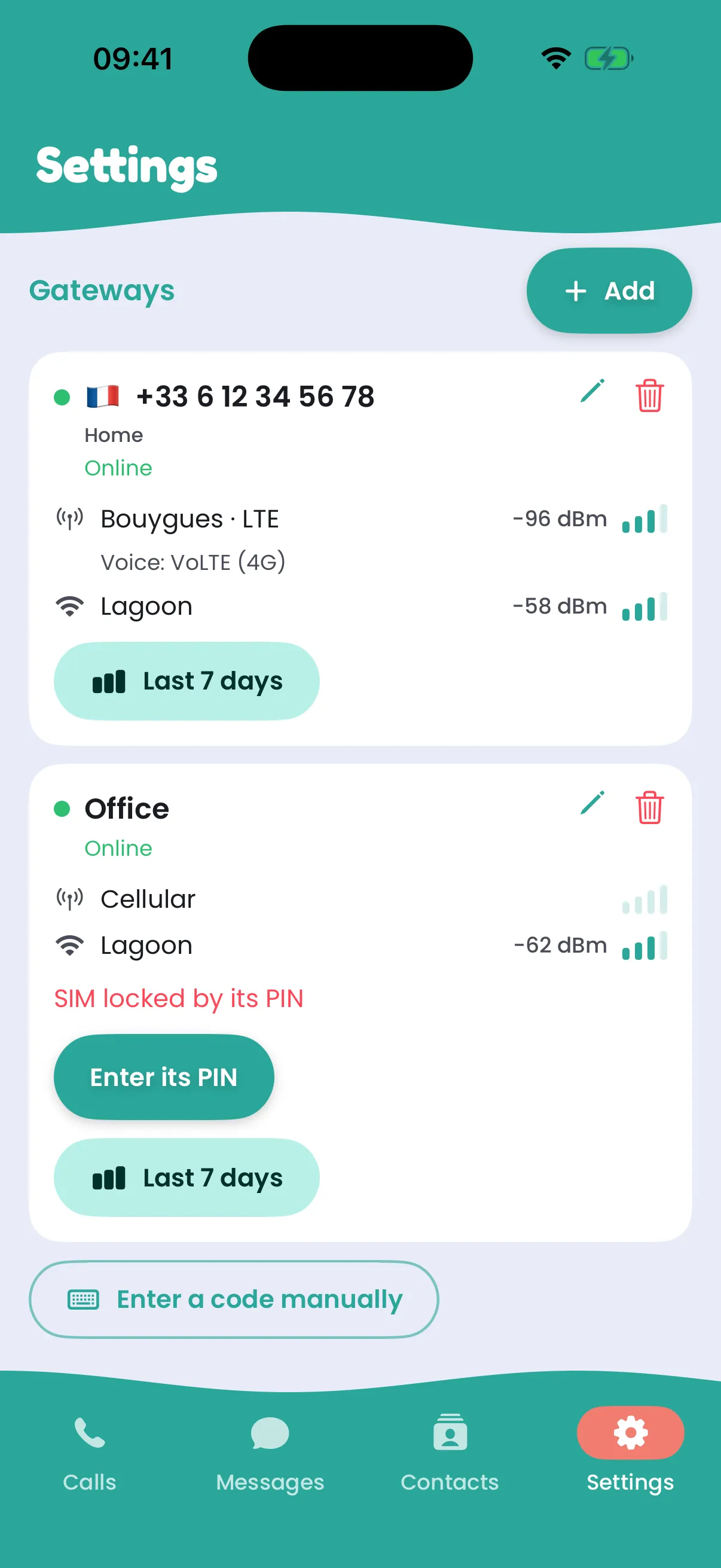
Section titled “5. Enter the SIM’s PIN, if it has one”Once the box is online, a SIM with a PIN code shows on its card in Settings: SIM locked by its PIN. Tap Enter its PIN. Your Tahaa keeps it and unlocks that SIM by itself after every restart. The PIN is sent encrypted for your box alone, and the app shows how many tries are left before the SIM wants its PUK code. A SIM already blocked by its PUK has to be unlocked in a phone.
6. Release the number from chat apps
Section titled “6. Release the number from chat apps”If the SIM was used in a smartphone before, its number may still be registered for chat messages (RCS on Android, iMessage on iPhone), and texts from smartphones then never arrive. Release it once: see Texts not arriving. The links are also in the app’s Settings, under Chat apps.
That’s it: call and text as usual.
The light
Section titled “The light”| Light | Means |
|---|---|
| Steady green | Online, good signal (yellow, orange: weaker signal) |
| Steady purple | Online, but hardly any mobile signal, or none: calls and texts may fail. Move the box (see Troubleshooting) |
| Blinking white | A call is in progress |
| Blinking yellow | Looking for Wi-Fi |
| Blinking green | On Wi-Fi, reaching the Tahaa service |
| Red and blue | Setup mode: waiting for Wi-Fi from the app |
| Fast blue | A phone is connected over Bluetooth |
| Blinking red | A problem: no SIM, SIM locked by a PIN, or wrong Wi-Fi password |